Screen vs. Print resolution
Sharp on your screen. Soft in print.
A file that looks perfect on your monitor can print blurry and blocky — and the monitor will never warn you. Here's why that happens, the quick math for the most common print sizes, and how to check any file in ten seconds. Not sure about yours? Send it anyway — checking files is our job, and it costs you nothing.
Screens show ~72 dpi
Your monitor hides missing detail.
We print up to 1440 dpi
Print reveals everything a screen forgives.
The target: 300 dpi
At final print size, for photos and raster art.
Why the screen lies
Your monitor spreads an image across roughly 72 to 96 dots per inch and lights every one of them from behind — flattering conditions for any image. Print is a harder exam: ink on material, at up to 1440 dots per inch, viewed in daylight with no backlight helping. An image with only enough pixels for screen viewing has to stretch to fill the print size, and every pixel becomes a visible block. Software can enlarge an image, but it can't invent detail that was never there — upscaling just makes bigger blocks. The rule that never changes: you can always make an image smaller with good results, never larger.
The math, once
Pixels needed = print size in inches × 300. That's the whole formula. Applied to the three most common jobs:
Left-chest logo
About 3.5" wide on the garment. 3.5 × 300 = roughly 1,000 pixels wide. Most logos saved off a website are half that.
Full back print
About 12" wide. 12 × 300 = 3,600 pixels across — a real production file, not something downloaded from a webpage.
Banners & signs
Viewed from feet away, not inches, so big formats need fewer dpi than the formula says. Send what you have and we'll confirm it holds up at size.
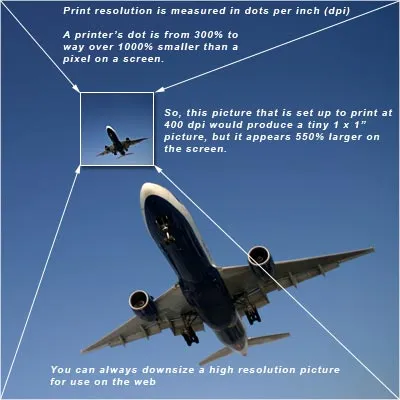
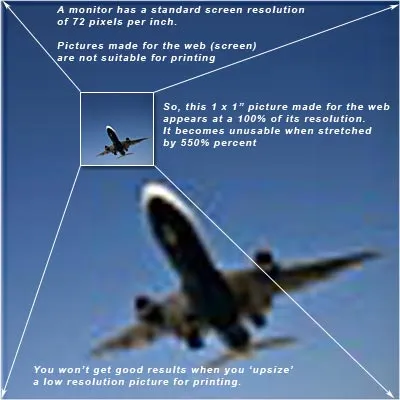
The same image, two resolutions
Side by side: enough pixels to print sharply, and enough for a screen only.
Where soft files come from
Almost every low-resolution file we see arrives the same few ways: a logo saved off a website (sized for screens on purpose), a screenshot (which can only capture the pixels your screen was showing), an image forwarded through text or chat apps (which compress hard to save data), or a profile picture pulled from social media. None of these are mistakes — they're files doing exactly what they were made for, which was never printing. The fix is upstream: go back to whoever created the artwork and ask for the original file, ideally vector.
Check any file in ten seconds
Right-click the file and open Properties (Windows) or Get Info (Mac) to find its pixel dimensions. Divide the width in pixels by the width in inches you want to print. At 300 or more, you're ready. Under 300, send it anyway — our design review catches resolution problems before they reach production, simple logos can often be redrawn as clean vector art, and anything that would cost money gets a conversation with your project manager first.
The vector escape hatch
Vector files — .ai, .eps, .svg — have no resolution at all. They're drawn from math instead of pixels, so the same file prints a business card or a forty-foot banner with identical crispness. If a vector master of your artwork exists anywhere, that's the file to send, and resolution stops being your problem permanently. For the full picture on formats, fonts and color, see our printing guidelines.
Ready when you are
Tell us what you're trying to make
Send artwork, a rough sketch, or just an idea. We'll come back with options at three price points and a proof within one business day. No minimums, no obligation, and a real person on the other end.
Prefer to talk? Call (541) 207-3424 or stop by 1853 NW 9th St, weekdays 10am–5pm.